How to Add a Signature to a PDF — A Beginner's Step-by-Step Guide
If "please sign the PDF and send it back" left you stuck, you're in the right place. It's not hard. Do it once and it takes under a minute every time after. Let's walk through it with the actual screens.
1. Open the editor
Go to the PDF editor and drop in the PDF you need to sign. No sign-up, no install. Once your file loads, you'll see this.

Tools are on the left, your document is in the middle, and the change list on the right shows everything you've done so far.
2. Pick the signature tool
Click Signature at the top left. Options for line thickness and color appear below it. You can leave the defaults as they are.
3. Draw your signature
Hold down the mouse over the signature line and move to draw. A touchscreen looks more natural than a mouse, and a mouse more than a laptop trackpad.
It's fine if it doesn't come out right the first time. Use Undo at the top (or Ctrl+Z) and redraw. Going slow actually makes it look shaky — draw it in one quick stroke, the way you'd sign on paper.
4. Add your name and date
If you need a name or date next to the signature, click the Text tool, then tap where you want it and type. Once everything's in, it looks like this.
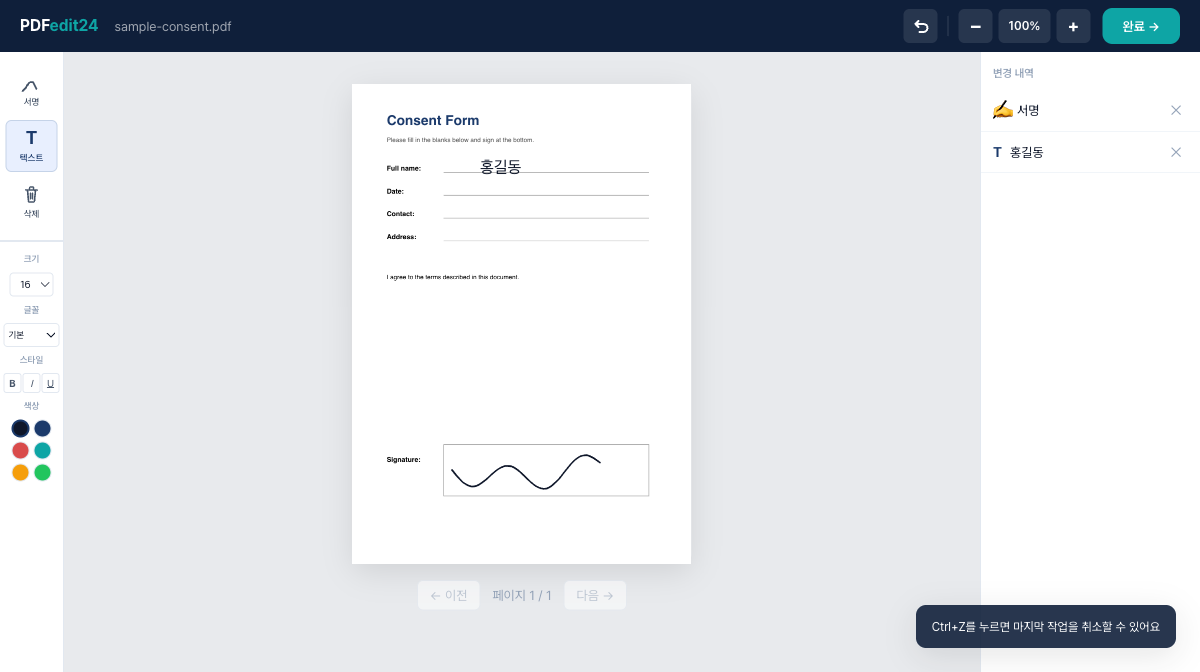
The change list on the right shows each item you added at a glance. Added something by mistake? Remove it with the ✕ next to it.
5. Download and send
Click Done at the top to download the PDF with your signature in it. Attach that file to your email and you're finished.
Common questions
My signature came out crooked. Drag the placed signature to move it, and drag a corner to resize.
Will it show up on the recipient's computer? Yes. The signature is flattened into the PDF, so it appears the same in any viewer.
The first time is the only awkward one. Try it now in the editor.
Sign your PDF right now
No install, no sign-up. Your file never leaves your browser.
Open the PDF editor