How to Add Text to a PDF
When you get a PDF form, there's usually a row of blanks — name, date, address. Instead of printing it, writing with a pen, and scanning it back, you can type straight onto the screen.
How to add text
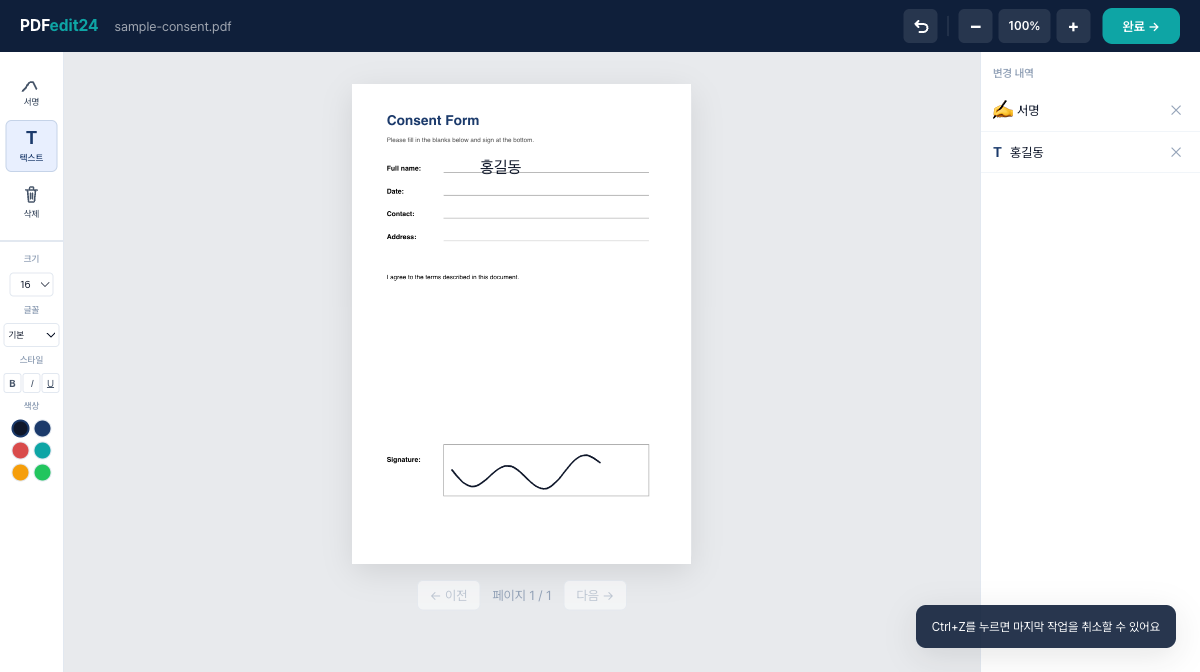
- Upload the form to the PDF editor.
- Click the Text tool on the left.
- Tap a blank where text goes and an input box appears. Type into it and confirm.
Fill each field this way.
Tips to line it up nicely
- Size: if the text is bigger than the box, shrink the font size on the left until it fits the line height.
- Position: drag the placed text onto the line. It doesn't have to hug the line exactly — readable is enough.
- Font: choose between default, serif, and handwriting. The handwriting font fits if you want a signed feel.
- Bold and color: bold or recolor anything you want to stand out.
What about checkboxes or marks
If the form has a box you need to mark, just type a V or an X with the text tool. Want to circle something? Draw it lightly with the signature tool.
Common questions
The text won't go in. Tap a blank and an input box appears. If you don't see it, check that the text tool is selected.
I want to fix text I already added. The cleanest way is to delete that entry in the change list on the right and add it again.
Will special characters break? Letters, numbers, and accented characters all go in as-is and look the same in the downloaded PDF.
The more blanks a form has, the faster typing on screen is. Upload it to the editor and fill it now.
Sign your PDF right now
No install, no sign-up. Your file never leaves your browser.
Open the PDF editor