How to Sign a PDF on iPhone: Markup vs. a Web Editor
Before you go looking for a signing app, check what's already on your iPhone. Markup, the drawing tool built into Files and Mail, can put a signature on a PDF in under a minute. For a single signature line it's often all you need. It starts to get awkward when a form wants your name, a date and a few other fields, or when you need to explain the process to someone on an Android phone.
This guide covers both: how to sign with Markup, where it falls short, and how to do the same job in Safari with a web editor. Menu names and positions can shift a little between iOS versions, so if a button isn't exactly where described, look nearby.
Option 1: Sign a PDF in the Files app with Markup
If the PDF came through a chat app or as an email attachment, save it to Files first.
- Save the PDF to Files. Open the PDF, tap the Share button, choose Save to Files, and pick a folder.
- Open the PDF in the Files app.
- Tap the Markup button. It looks like a pen tip, usually at the top or bottom of the screen.
- Tap + and choose Add Signature. If you've made a signature before, you can pick it from the list instead.
- Draw your signature with your finger and tap Done.
- Drag the signature onto the signature line and pull a corner to resize it.
- Tap Done to save, then use the Share button to send it.
iOS remembers signatures you create in Markup, so next time you just pick yours from the list. If you sign things often, that's Markup's biggest advantage.
Option 2: Sign an email attachment and reply
With the built-in Mail app you can sign a PDF attachment without saving it anywhere first.
- Tap the attachment in the email to open it.
- Tap the Markup button (the pen tip).
- Tap + then Add Signature, place it and size it.
- Tap Done. iOS asks what to do with the marked-up file. Choose the option to include it in a reply, and a reply opens with the signed PDF attached.
It's a quick loop when someone emails you a form and wants it back. The wording of that last menu varies by iOS version. If you don't see it, fall back to Option 1: save to Files, sign there, then attach.
Where Markup gets fiddly
Markup was built for quick annotations, and it shows on certain documents.
- Forms with lots of fields. Every name, date and phone number is its own text box that you create, type into and drag into place. On a form with eight boxes, that adds up.
- Limited fonts. Markup's text tool offers only a handful of fonts. If you want something that looks handwritten or more formal, there's not much to choose from, and non-Latin scripts generally fall back to the system font.
- iPhone and iPad only. If you're helping a parent or coworker who uses Android, Markup isn't something they can follow along with.
Option 3: Sign in Safari with PDFedit24
PDFedit24 runs in the browser, so there's nothing to install. The steps are identical in Chrome or Samsung Internet on Android, which makes it easy to share with anyone.
- Open PDFedit24 in Safari and tap Choose File. Your PDFs saved in Files show up in the picker.
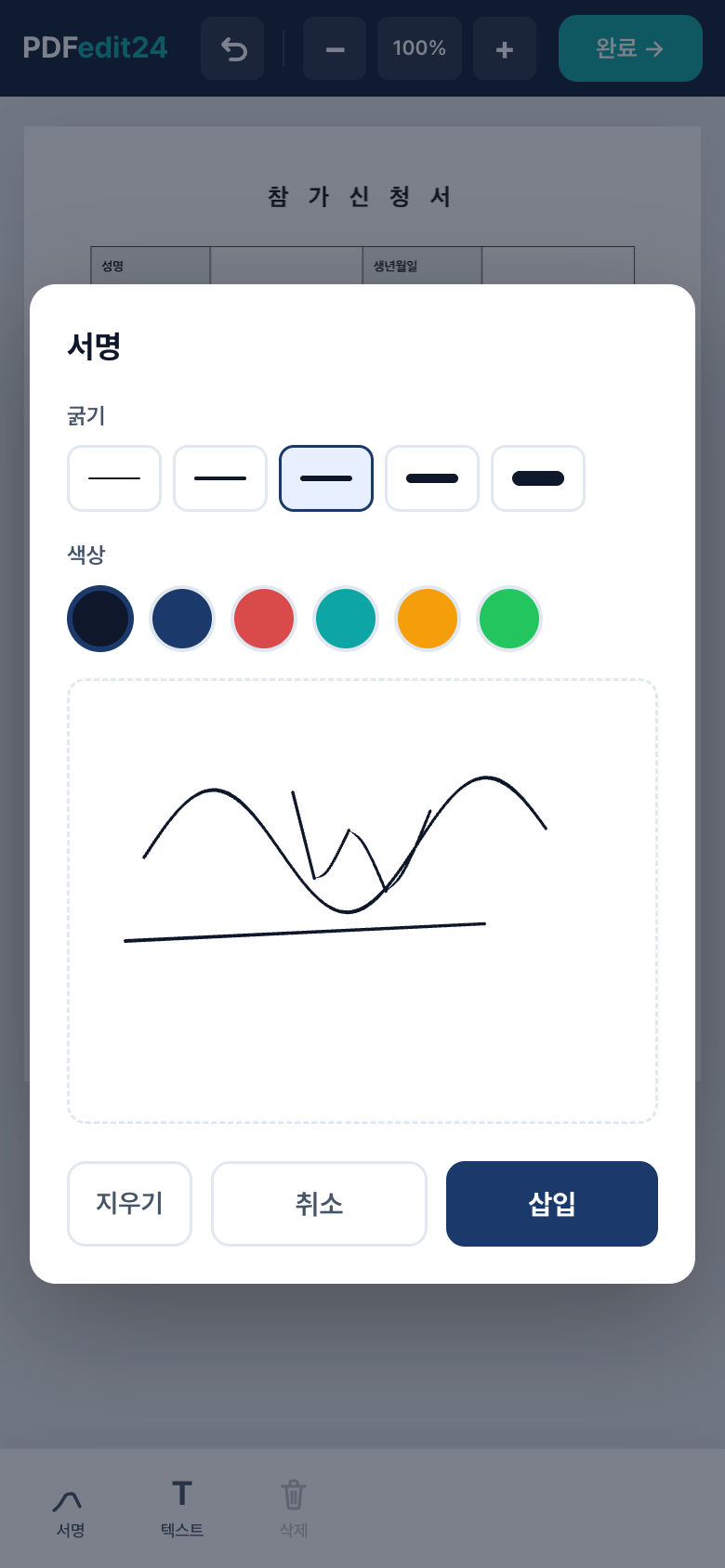
- Tap Sign in the bottom bar. A signing box opens in the middle of the screen. Pick a Width and Color, then draw with your finger. Tap Clear to start over, Cancel to back out, or Insert when it looks right.
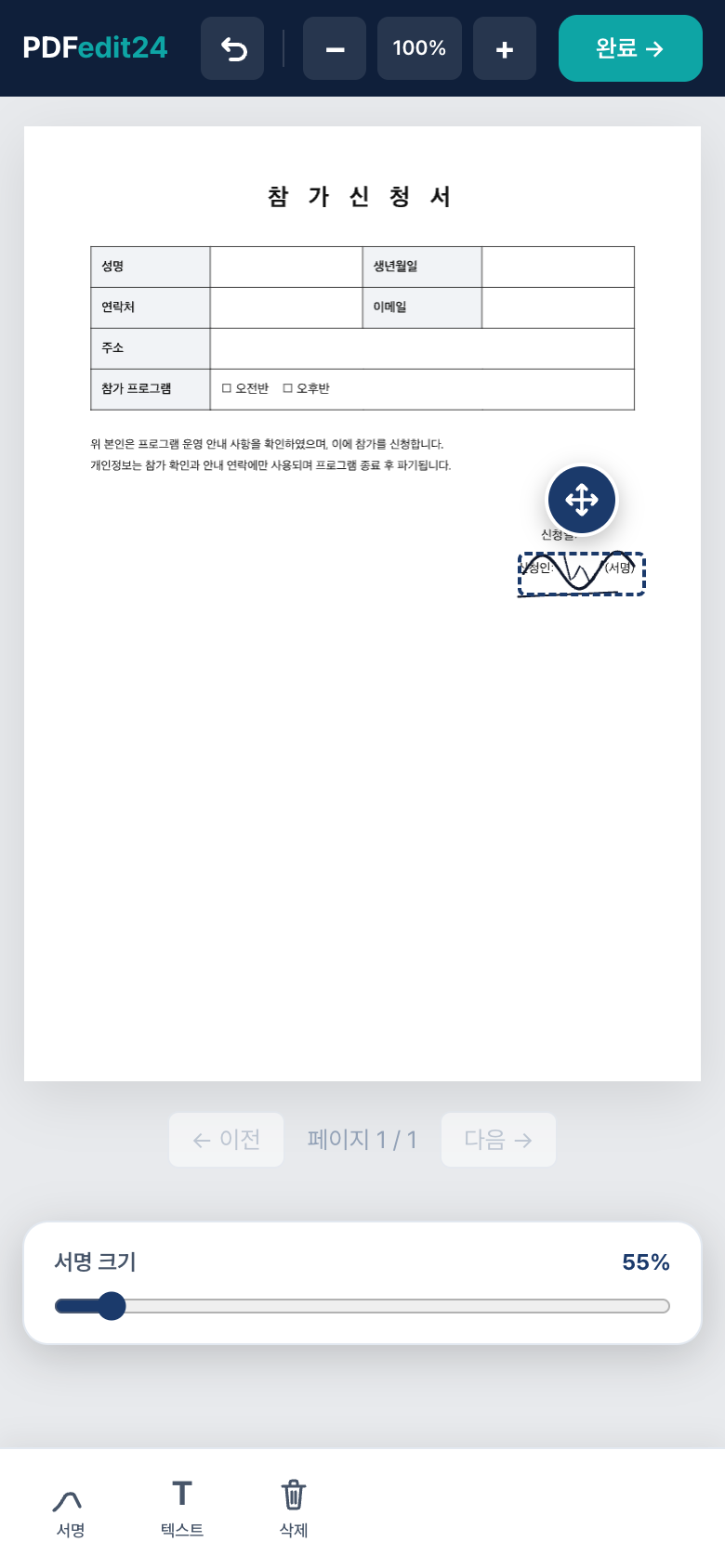
- Position it. The inserted signature lands in the center of the page, already selected. Drag the move handle (↔) above it to put it on the signature line, and use the Signature size slider at the bottom to scale it.
- Add your name and date with Text. You can choose Default, Serif or Handwriting.
- Remove a mistake by tapping the item to select it, then tapping Delete in the bottom bar. It's gone immediately, and Undo (↶) brings it back if needed.
- Tap Done →. The file downloads as "originalname_signed.pdf". Safari usually puts it in the Downloads folder in Files.
Your PDF isn't uploaded to a server; it's opened and saved inside your phone's browser. The trade-off is that signatures aren't saved, so you draw a fresh one each time. For more phone-specific tips, see how to sign a PDF on your phone.
Markup vs. PDFedit24 at a glance
| iPhone Markup | PDFedit24 (web) | |
|---|---|---|
| Install | Built in | Nothing, runs in Safari |
| Saved, reusable signature | Yes | No, draw it each time |
| Fonts for typed text | A few options | Default, Serif, Handwriting |
| Works on Android | No | Yes |
| File uploaded to a server | No, handled on the phone | No, handled in the browser |
A rough rule: one signature on a document you get often, use Markup. A form with several fields, or instructions you need to share with an Android user, use the web editor.
Tips for a cleaner signature
- Zoom in before you draw or place. Pinch to enlarge the signature area so you can line things up with a narrow box.
- Use an Apple Pencil if you have one (on iPad). It gives a thinner, steadier line than a fingertip.
- Turn the phone sideways. Landscape gives you a wider area to sign in, which helps with longer signatures.
- Check the file name before sending. Something like "Application_JaneDoe.pdf" is easier for the recipient to find than "scan_0012.pdf".
Wondering whether a signature drawn on a phone holds up? There's a general overview in is an electronic signature legal? It isn't legal advice, and if the other party asks for a specific signing method, use theirs.
Common questions
Does iPhone Markup save my signature? Yes. Signatures you create in Markup are stored by iOS so you can reuse them. PDFedit24 doesn't store signatures at all.
I can't find the Markup button. Where is it? Its position depends on your iOS version. Tap the document once to show the toolbar, or save the PDF to Files and open it from there.
Can I use a photo of my signature on paper? Not in PDFedit24; it doesn't support image upload, so you draw the signature. If you need a signature image for other uses, see how to make a signature image.
How do I help someone on Android sign the same form? Markup is Apple-only. Send them to PDFedit24 in Chrome or Samsung Internet; the steps are the same as on iPhone.
Where does the signed PDF end up? Markup saves the changes into the file you opened. PDFedit24 saves a new copy ending in "_signed" to the Downloads folder in Files.
When a form needs more than a signature, open the PDFedit24 editor in Safari and fill it in one pass.
Sign your PDF right now
No install, no sign-up. Your file never leaves your browser.
Open the PDF editor