4 Ways to Write on a PDF — Compared, Free Options
You've got a PDF and you need to write a few words on it — a name, a date, a check in a box. It sounds trivial, then you open the file and there's nowhere to type. The good news: there are several ways to write on a PDF, and you probably already have one or two on your devices. The real question is which one gets you done with the least fuss. Here are the four most common options side by side, and how to choose.
1. Adobe Acrobat Reader — Fill & Sign
The free Reader is what most people think of first. Open the PDF, pick Fill & Sign, click where you want text, and type.
- Good: It's often already installed on work and school computers, and it handles PDFs of every kind.
- Less good: You have to install it first. Depending on the version, some features ask you to sign in or point you toward a paid plan. Font choices are limited.
If Reader is already on your machine, there's no reason to go looking elsewhere. If you'd be installing it just for this one form, that's a lot of setup for a few words. For other routes, see how to edit a PDF without Adobe.
2. iPhone and iPad Markup, Mac Preview
On Apple devices there's nothing to install.
- iPhone and iPad: Open the PDF in the Files app and tap the Markup button (the pen tip). From the + menu, add a Text box to type, or a Signature to sign.
- Mac: Open the PDF in Preview and choose Tools > Annotate > Text to drop in a text box.
If you're on an iPhone and only need to fill one or two blanks, Markup is the fastest option on this list. You don't even need to find an app. The trade-offs: it's Apple-only, and nudging a small text box onto a line with your finger takes some patience.
3. Windows — Microsoft Edge's PDF viewer
Edge comes with Windows, and when you open a PDF in it, the toolbar includes options like Add text and Draw. Type, save, done. For a quick one-off it's hard to beat. Menu names and placement can vary between versions.
Styling is minimal, though. If you want a particular font, or something that looks handwritten, you'll run out of options quickly.
4. A no-install web tool — PDFedit24
This is the route for when you don't want to install anything, don't want an account, and don't want to care which device you're on. Drop the PDF into PDFedit24 and the editor opens right away. It works in the browser on Windows, Mac, iPhone, and Android.
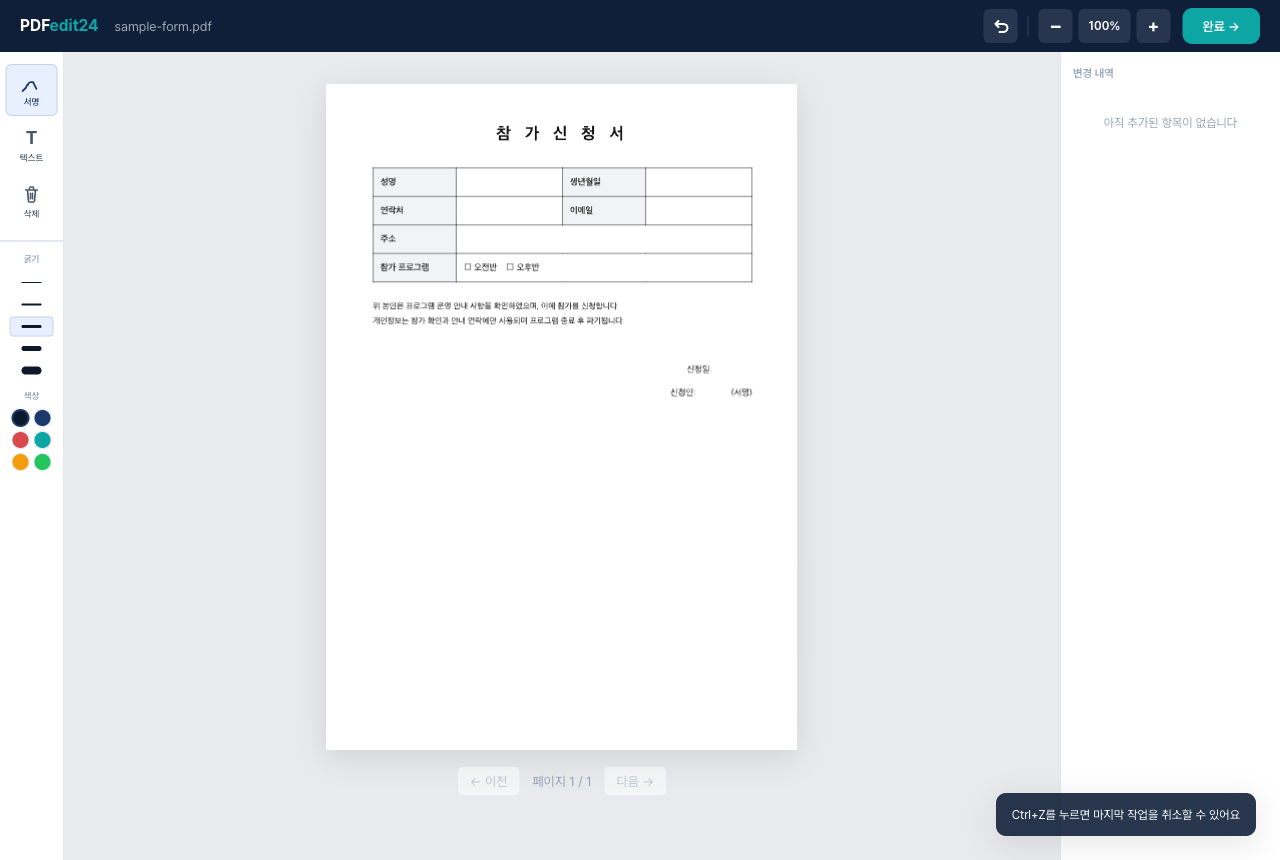
Choose Text on the left, click a blank, and type. You can pick a font (Default, Serif, or Handwriting), set the size and color, and turn on bold, italic, or underline. Then drag the text so it sits neatly on the line.
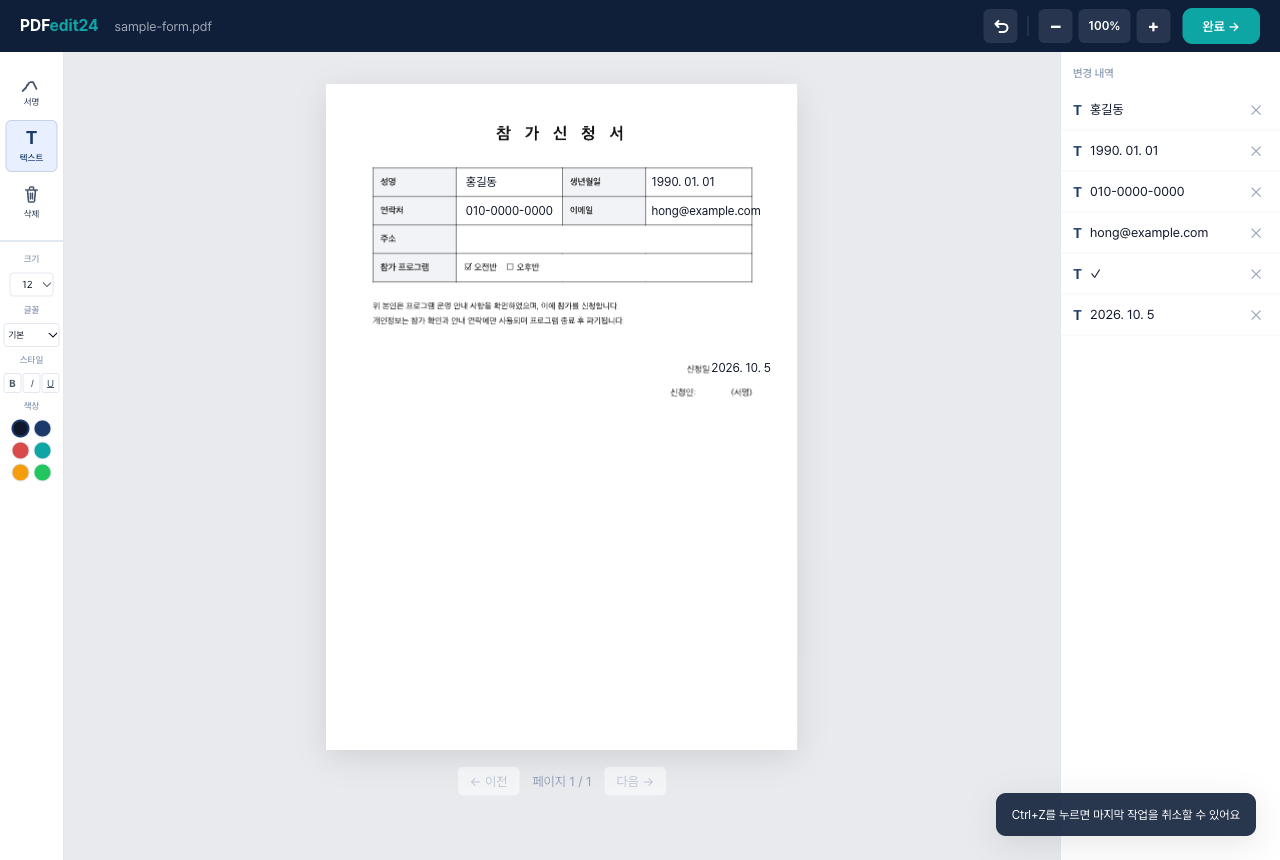
On a computer, the Changes panel on the right lists everything you've added on the page you're viewing, so it's easy to spot a field you skipped. Your file isn't uploaded anywhere; it's processed inside your browser.
A couple of things to know up front. Each text entry is a single line. And when you download, the text is merged into the PDF as an image, so you can't edit or search those words afterward — finish your edits before you click Done →. For a field-by-field walkthrough, see how to add text to a PDF.
Side-by-side comparison
| Acrobat Reader | iPhone Markup / Mac Preview | Edge (Windows) | PDFedit24 | |
|---|---|---|---|---|
| Install | Required | Built in | Built in | None (browser) |
| Account | Some features | Not needed | Not needed | Not needed |
| Devices | Desktop and mobile apps | Apple only | Mainly Windows PCs | Any computer or phone |
| Font choice | Limited | Varies by app | Minimal | Default, Serif, Handwriting |
| File upload | Processed on your device | Processed on your device | Processed on your device | No upload |
| Cost | Free (some paid features) | Free | Free | Free |
One thing the table makes clear: the built-in and installed options also keep your file on your device. Where a browser tool earns its place is that it skips the install and the account while working the same way on every device.
Which one should you use?
- One quick note on your iPhone: Files app Markup. It's already there.
- Acrobat Reader is already on your work computer: use Fill & Sign and move on.
- A one-off on a Windows PC: open the file in Edge and add text.
- No install, no account, any device, and some control over fonts: a browser tool like PDFedit24. If you're working through a long application, how to fill out a PDF form online covers the whole form in order.
Whatever you choose, keep the font and size consistent across the form. Mixed styles make a document look patched together, and that's the kind of thing that gets a form a second look.
Common questions
Can I change the text that's already in the PDF? Mostly no. These methods add new text on top of the page rather than editing what's there. PDFedit24 can't change or delete original text either.
What's the simplest free way to write on a PDF? Use what fits the device in your hand. Markup on an iPhone, Edge on Windows, or a browser tool if you want the same thing everywhere with nothing to install.
Can I write on a PDF from my phone? Yes. On an iPhone, Markup works. On any phone, including Android, you can open PDFedit24 in the browser, tap Text, and type into the dialog that appears.
If I use a web tool, does my file get stored somewhere? With PDFedit24, everything from typing to building the final PDF happens in your browser, and the file isn't sent to a server. With other web tools, check whether they upload your file before you use them for anything personal.
Will the text look right when someone else opens the file? With PDFedit24, yes. The text is merged exactly as it looks on screen, so it displays the same everywhere, including non-English characters.
Want to try it without installing anything? Open your file in PDFedit24 and start typing.
Sign your PDF right now
No install, no sign-up. Your file never leaves your browser.
Open the PDF editor