How to Send a Signed PDF by Email or Message
"Please sign and send it back." The signing part takes a minute. Then you're staring at your screen wondering where the file went, how to attach it, and whether a chat app is good enough. This guide covers the part most how-to articles skip: getting the signed PDF from your browser to the person who asked for it.
1. Sign it first (the short version)
You can do this in the PDFedit24 editor with no account and nothing to install.
- Drag the PDF into the editor, or choose it from your files.
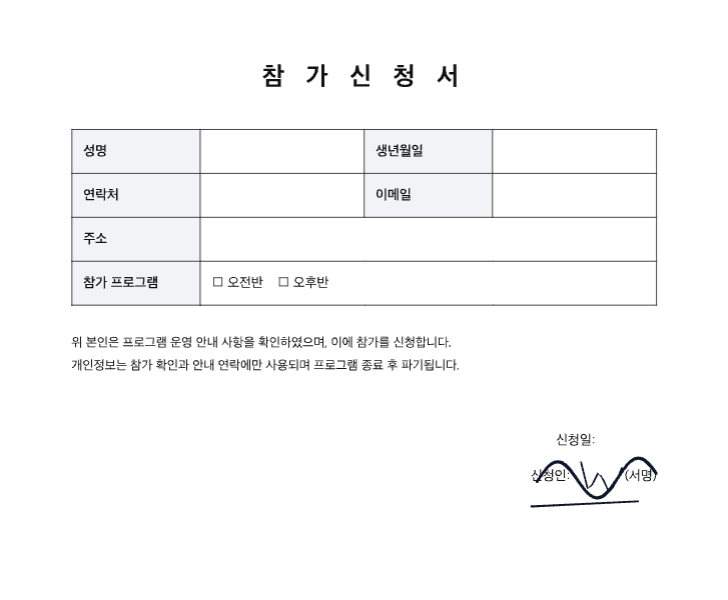
- Pick Sign and draw on the signature line. On a computer, the signature stays exactly where you draw it, so zoom in until the line is comfortably large before you start. On a phone, you can drag the signature into place and resize it afterwards.
- Switch to Text and fill in your name, phone number, date, or whatever else the form asks for.
- Press Done → in the top right.
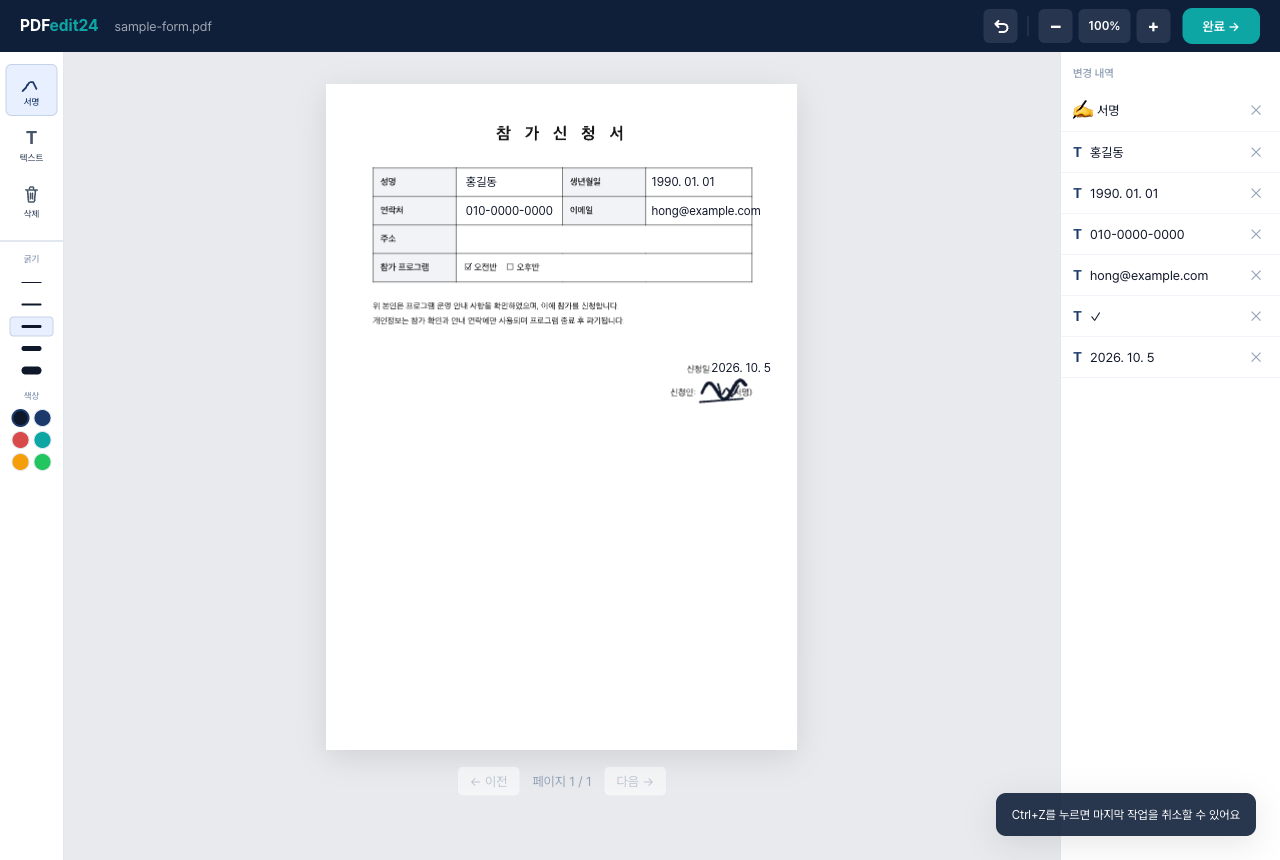
If you'd like a walkthrough with more screenshots, see how to add a signature to a PDF. Signing on a phone has its own quirks, covered in sign a PDF on your phone.
2. Where the signed file ends up
After you press Done →, you land on a completion page and the download starts on its own. If it doesn't, there's a Manual download button on that page. The file is named after the original with _signed added, so contract.pdf becomes contract_signed.pdf. There's no watermark on it.
Where it's saved depends on your device and browser settings:
- Computer: usually your Downloads folder. Most browsers also show a download icon or bar you can click to open the file or reveal it in its folder.
- iPhone: usually the Files app, under Downloads. In Safari you can also tap the download icon next to the address bar.
- Android: usually the Downloads folder, which you can reach through the Files or My Files app.
Rename it if they asked for a format
If the person who sent the document asked for a specific file name, like Lastname_DocumentName.pdf, rename it before you send it. Even if they didn't, something like JaneDoe_ApplicationForm.pdf is easier to find in a busy inbox than form_signed.pdf. Just keep the .pdf at the end.
3. Sending it by email
Email is the safest default for signed documents. There's a record on both sides, and the recipient can file the attachment wherever they keep paperwork.
- Reply to the original message. Instead of starting a new email, hit Reply on the message that asked for the signature. The recipient sees straight away which document you're returning, and the whole exchange stays in one thread.
- Gmail or Outlook on a computer: drag the file from your Downloads folder into the message you're writing, or click the paperclip and pick it.
- On a phone: in the Gmail or Outlook app, tap the attachment icon and choose to attach a file (not a photo), then browse to Downloads. A PDF won't show up in your photo library, so that's the wrong place to look.
The message itself can be one line: "Attached is the signed application form. Let me know if you need anything else."
4. Sending it through a messaging app
Sometimes the request comes over WhatsApp, Slack, or another chat app, and replying there is fine if that's what they asked for.
- WhatsApp on a phone: open the chat, tap the attachment icon, choose Document, and pick the file from Downloads. Choosing Document rather than Photo matters, because it sends the actual PDF.
- WhatsApp Desktop or Web: drag the file into the chat, or use the attachment button and choose Document.
- Slack, Teams and similar: drag the file into the conversation or use the attach button.
Chat apps don't always keep files forever, and older attachments can stop being downloadable. Keep your own copy of the signed PDF somewhere you control, not only in the chat.
Plain text messages (SMS or MMS) are generally a poor fit for PDFs. Many phones and carriers won't attach a document that way, or they'll hit a size limit. Use email or a proper messaging app instead.
5. A quick check before you hit send
| Check | What to look for |
|---|---|
| Signatures and dates | Every page that needs a signature or date has one |
| Open the file | Open the downloaded PDF and confirm everything sits where it should |
| File name | Matches any format they asked for, still ends in .pdf |
| File size | Attachment limits differ between email services, so check if the file is large |
| Recipient | Right address or chat, and the reply goes to the person who asked |
One detail worth knowing: the Changes panel only appears on a computer, and it lists the items on the page you're currently viewing. For a multi-page document, step through each page to make sure nothing is missing.
6. Is a signature sent this way valid?
For everyday paperwork like application forms, consent forms, and confirmations, returning a signed PDF by email or message is common practice. Some documents are different, though. They may require a certificate-based digital signature, a notarized signature, or the original paper copy. If you're not sure, ask whoever sent it. There's more on this in is an electronic signature legal? This isn't legal advice.
Common questions
The download didn't start. What now? Use the Manual download button on the completion page. If your browser blocked the download, look for a prompt near the address bar and allow it.
I downloaded it on my phone but can't find it. On iPhone, check Files then Downloads. On Android, check the Downloads folder in your file manager. The file name ends in _signed, so searching for that usually turns it up.
I sent it and then noticed a mistake. In the downloaded file, your signature and text are merged into the page, so they can't be removed. Go back to the original PDF, sign it again, and send the new file with a short note asking them to use this version instead.
Email or a chat app: which is better? Whatever the requester asked for comes first. If they didn't say, email is the better choice, since it keeps a clear record and you don't have to worry about attachments expiring.
Does my file get uploaded anywhere? No. PDFedit24 processes the document in your browser and doesn't send the file to a server.
If there's a document waiting for your signature right now, open the PDFedit24 editor, sign it, and follow the steps above to send it back.
Sign your PDF right now
No install, no sign-up. Your file never leaves your browser.
Open the PDF editor